
Tabi Calc
Date, time, and currency calculator made for travelers


Your essential calculator for travel – Tabi Calc handles time, date, and currency effortlessly.
Tabi Calc is a smart, travel-focused calculator designed to make your journey planning and on-the-go calculations faster, simpler, and more accurate. Whether you're figuring out time zones, calculating the duration of a trip, or converting foreign currency, Tabi Calc does it all in one intuitive interface.
🕒 Date & Time Calculator
Easily calculate time differences and durations:
Find out how many days, weeks, or hours between two dates.
Add or subtract days, months, or years from any date.
Perfect for planning itineraries, visa durations, or work schedules across time zones.
💱 Currency Converter
Convert currencies with live or offline rates:
Automatically detects your location to suggest local currency.
Supports over 160 currencies with frequently updated exchange rates.
Works offline with previously fetched rates—ideal for travel without data.
✈️ Made for Travelers
Tabi Calc was designed with travelers in mind:
One tool for all your date, time, and currency needs.
Compact, fast, and easy to use—even on the go.
Saves recent calculations for quick reference.
🌐 International Support
Handles regional date formats and localization.
Accurate with leap years, daylight saving time, and calendar math.
Designed to support users worldwide.
🧮 More Than Just a Calculator
Tabi Calc is built to be both powerful and simple:
Clean, distraction-free interface.
No ads, no clutter—just focused tools to get the job done.
Precise results powered by a calculation engine built for accuracy.
Whether you're a frequent flyer, digital nomad, travel planner, or just someone who needs a smarter calculator, Tabi Calc is the perfect companion for navigating dates, times, and currencies with confidence.
Download Tabi Calc now and travel smarter.


Getting Started Guide
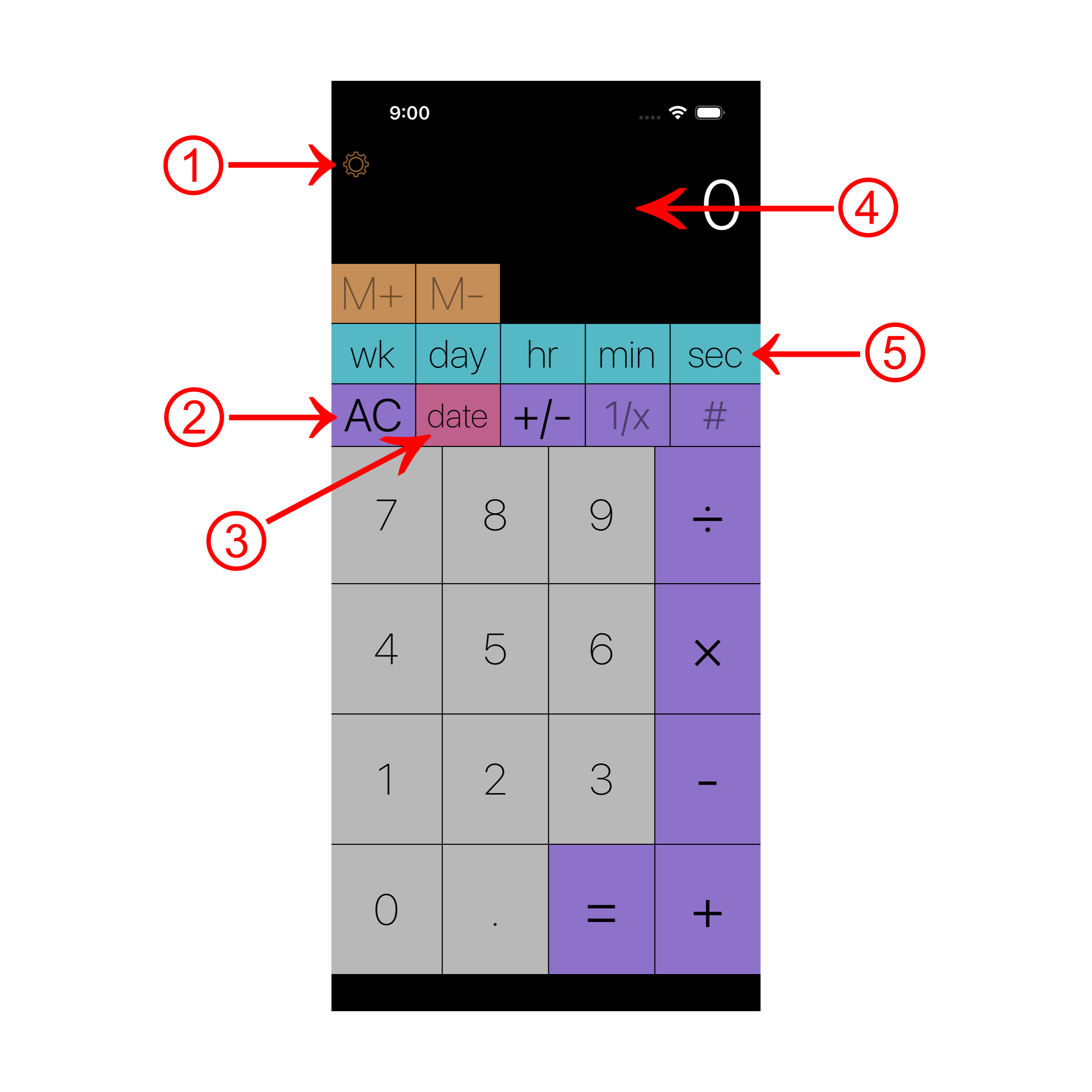
Main screen
Settings button is visible when you tap AC button.
All Clear button resets calculations.
Tap ‘Date’ to specify date, time and time zone.
You can copy or paste by long pressing the screen
Time duration buttons
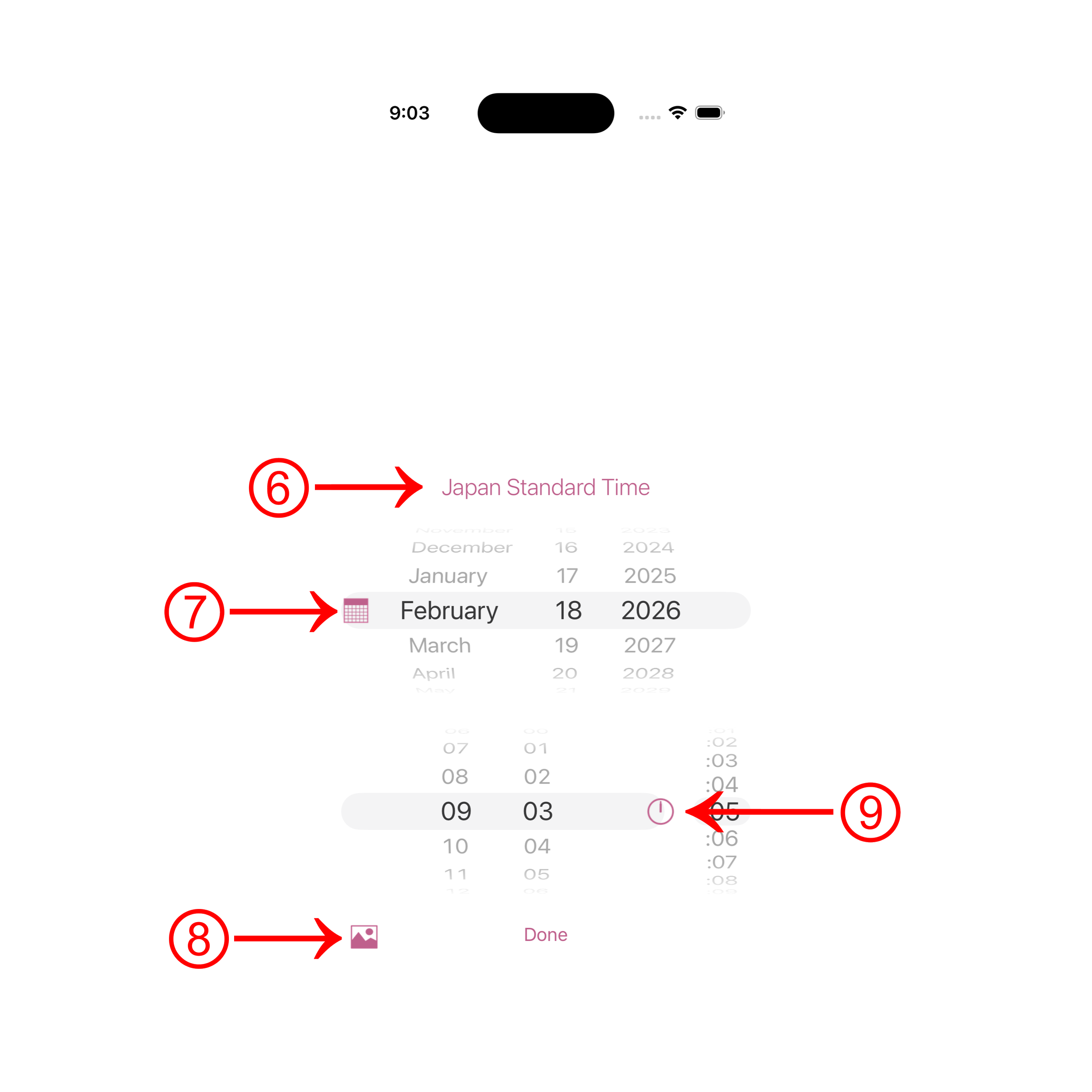
Date screen
6. Time zone button. Type city or 3-letter airport code.
7. Alternate Calendar button. Long press to choose which calendar to use.
8. To use a photo’s time stamp, tap here.
9. Midnight button sets the date the beginning of the day
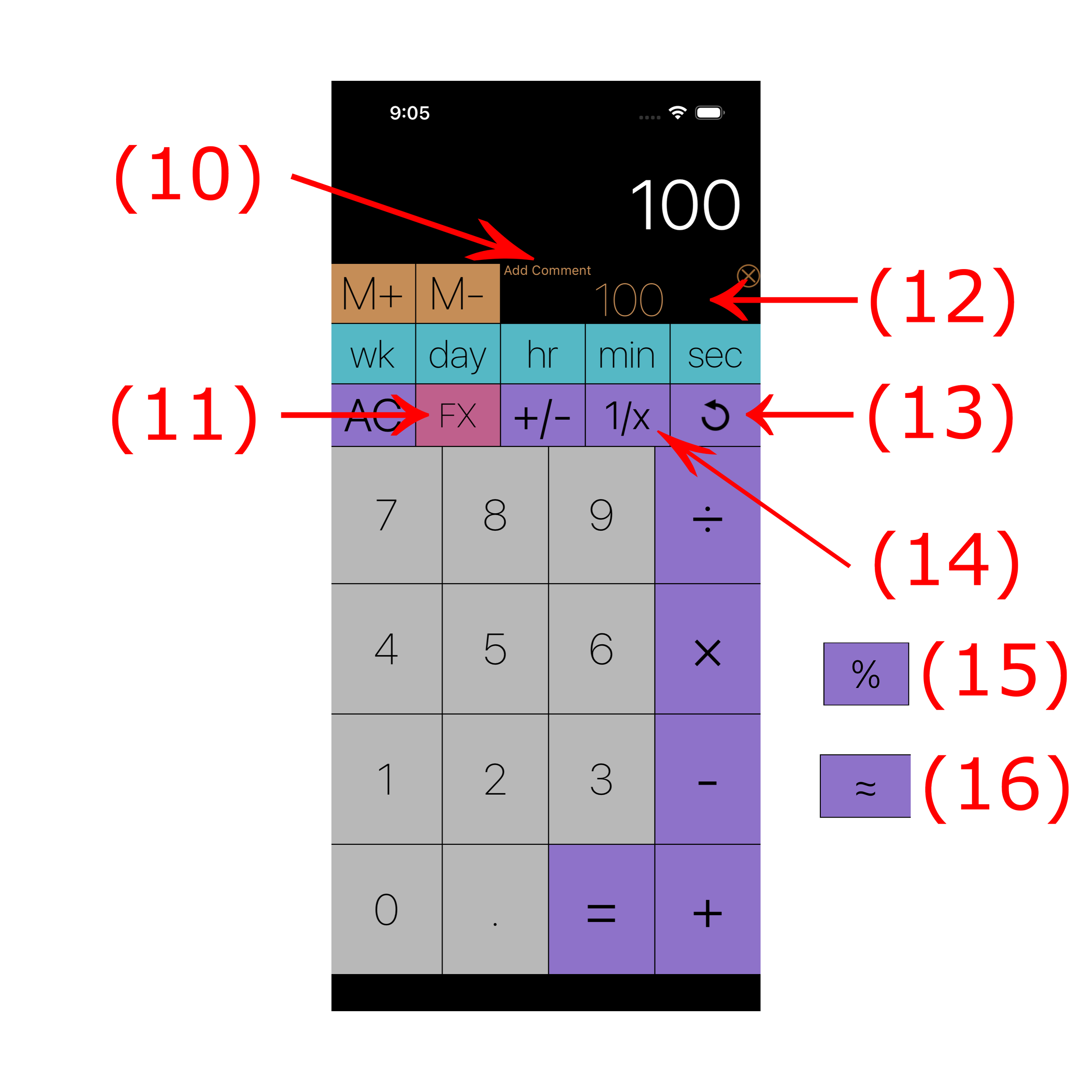
10. You can add comment on memory
11. For currency conversion, type in a number and tap FX. See (17)~(21) for more.
12. Multiple memory slots can be swiped (left and right). Long-press to protect it.
13. Undo button
14. Invert button. A calculation such as ‘A / ( B + C ) ‘ can be done by B, +, C, =, 1/x, X, A and =.
15. Percent button. eg. 100 + 5% = 105, 100 * 5% = 5.
16. Round button rounds a number such as 3.333333 to 3.
Currency Conversion (FX) mode:
Enter a value, tap FX, choose the currency to convert ‘from’ and then ‘to’, for example:
1, FX, $, €
To use FX mode on Apple Watch, you have to set the two currency buttons on the bottom. See (18) and (21)
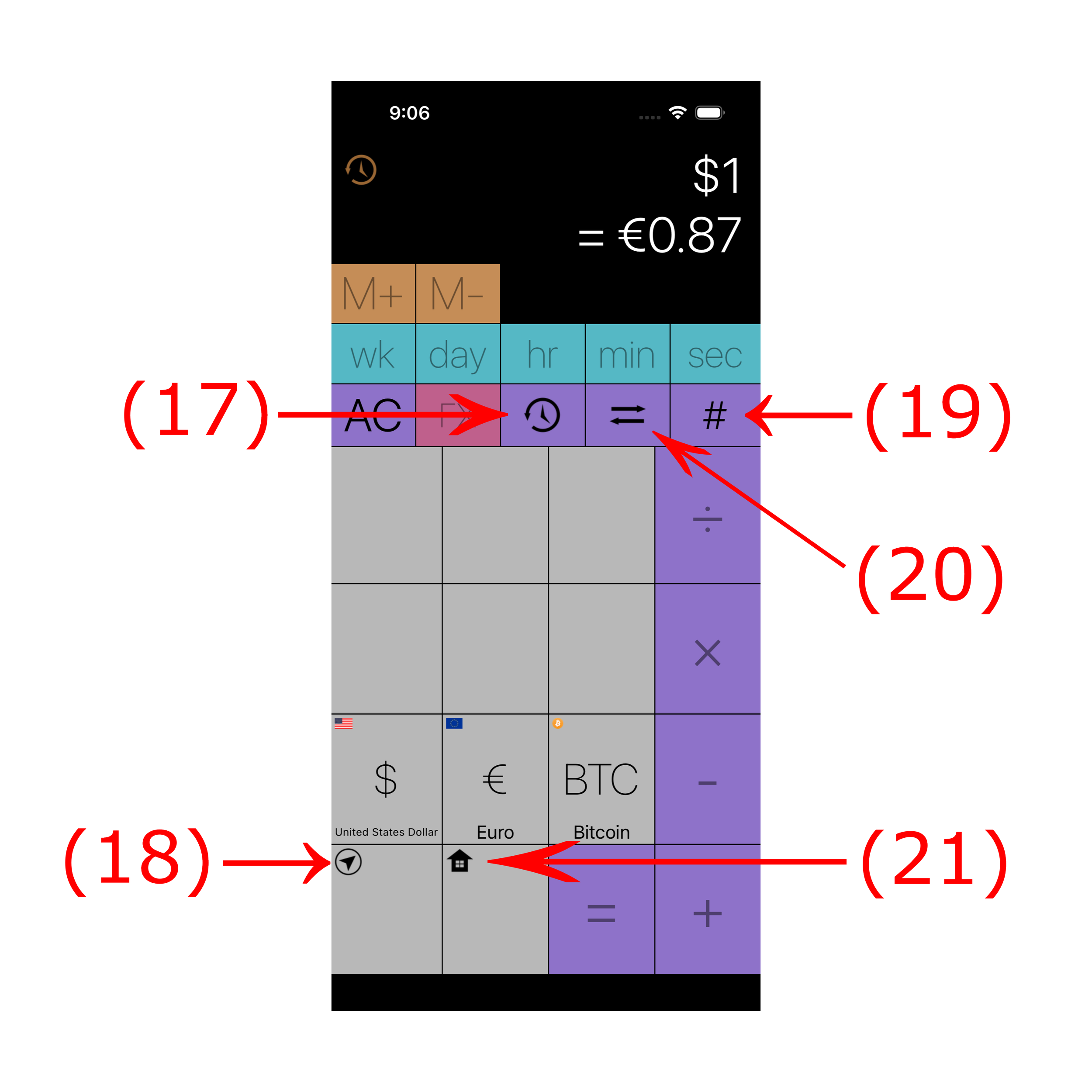
17. Historical Rate Button
18. This button detects your current location and set’s the currency automatically. Apple Watch uses this as your ‘current’ currency.
19. Number button. Use this button to get rid of units. eg. $1.87 becomes 1.87. 24 hours becomes 24.
20. Swap Currency
21. Choose your home currency here. When you tap ‘=‘ button instead of a currency button, the app assumes you want to convert to your home currency. On Apple Watch, you can convert between current and home currencies only.
Use case #1: Scheduling a zoom meeting with Paris office

Press ‘date’ button
Enter the date/time of the meeting
Press ‘=’ button
Press ‘date’ button (or ‘TZ’ button on Android)
Choose timezone
Result shows ‘Local date/time = date/time in Paris’
Use case #2: Duration for flight from Mexico City to Tokyo


Press ‘date’ and specify Arrival time first.
Set timezone to Tokyo by entering airport ‘NRT’
Press ‘-’ button
Press ‘date’ to enter departure time in Mexico.
Set timezone by entering ‘Mexico City’
Press ‘=’ to get the duration.
Use case #3: Rotate results in various formats
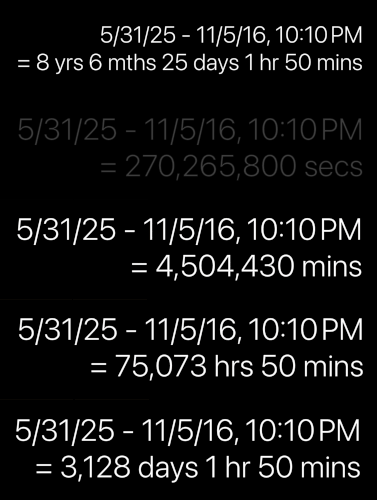
If the result is a duration, pressing ‘=’ button changes its format.
Use case #4: Multiple memory slots
Use case #5: Add tax to a US Dollar amount, convert to Japanese yen, and split it by 3.
Tabi Calc Privacy Policy
Tabi Calc doesn’t collect any data. Numbers, durations, dates that are put into memory only remain on the device, and it cannot be read by anyone other than those who are authorized by iOS device's authentication mechanism (such as Passcode, TouchID or FaceID). Those data will permanently be deleted when you delete them manually or when you uninstall the app.